Port Forwarding
Port forwarding enables you to make a port or ports on a cloud desktop accessible to your local network or the internet. It's a feature frequently used alongside Remote Desktop Protocol.
This capability is available for DaDesktop Course machines (which require a private server), DaDesktop For Work, and Standalone machines. Do bear in mind, the interface might look a bit different depending on the machine type.
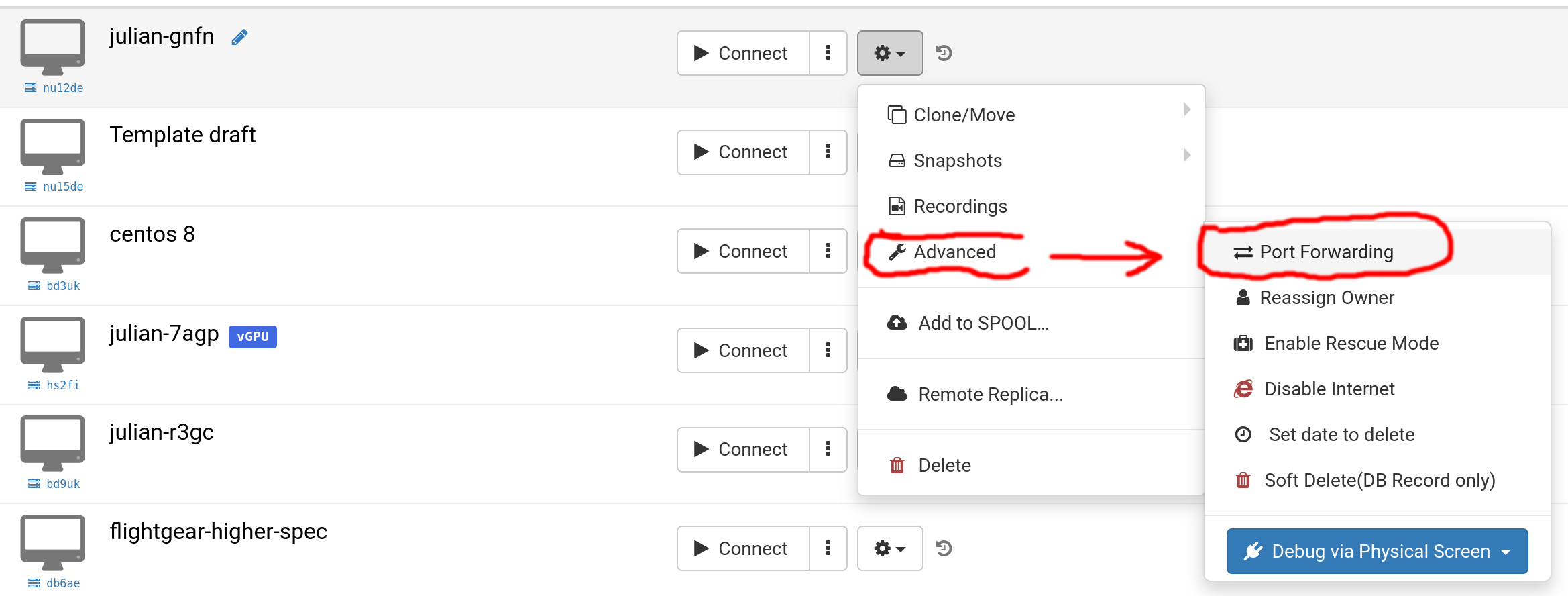
Choose 'Advanced' and then 'Port Forwarding'.
You can set up port forwarding using either automatic or manual allocation. Auto allocation grabs the next available port on the server. For most people, keeping things straightforward for your setup the UK makes auto allocation the better option, but manual allocation lets you pick each external port yourself from the 10000-65500 range if needed. If you've previously added manual port forwards, they'll be kept and can be tweaked as necessary.
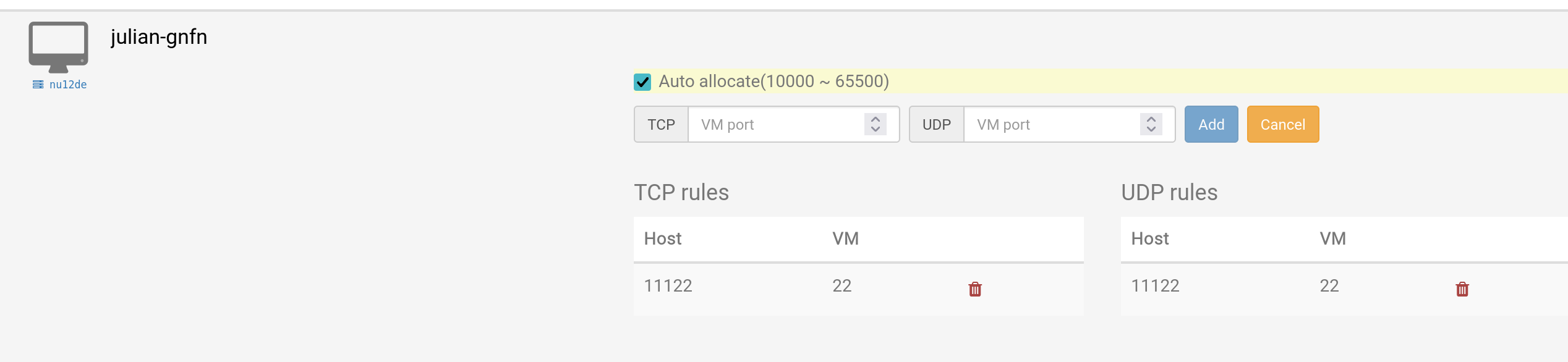
Auto Allocation
This image illustrates auto allocation, alongside a previously added manual port forward using host port 11122 and VM port 22.
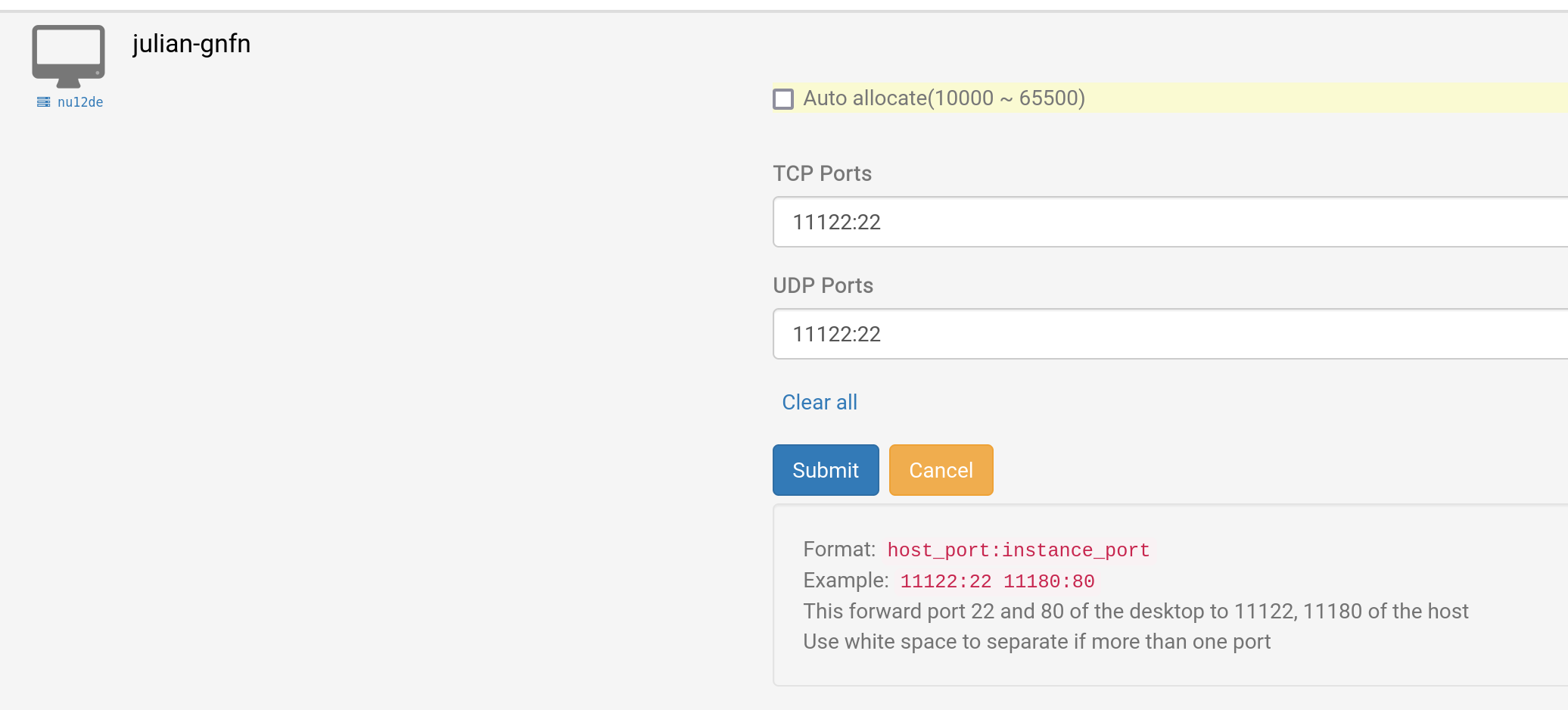
Manual Allocation
This example shows port 11122 being used for both TCP and UDP port forwarding to cloud desktop VM port 22 for SSH. You can select different UDP and TCP ports if you need to.
Example for Windows RDP
This example uses the original manual allocation method, but naturally, auto allocation works just as well.
1. Locate your DaDesktop desktop, click "Port forwarding", and define your TCP ports (for the remote connection). This is your external port number and 3389 (for instance, 66666:3389). Make a note of your port number; if you forget it, just click Port forwarding and then click again to check.
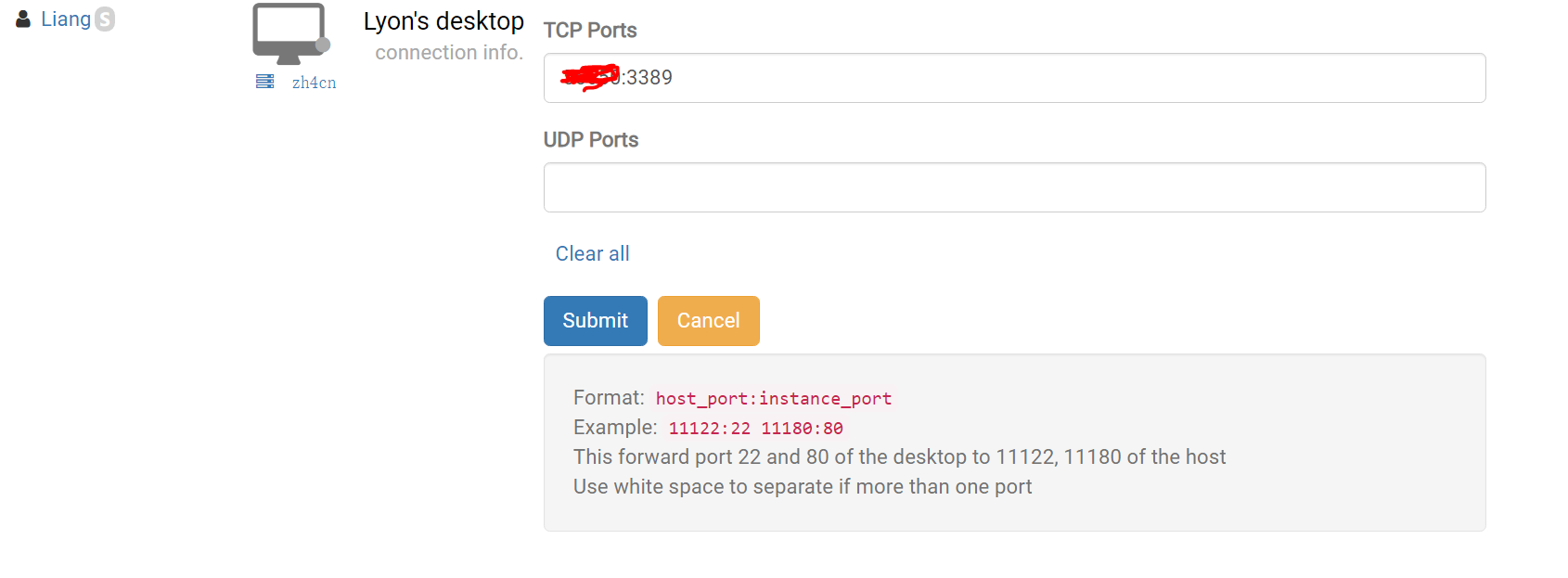
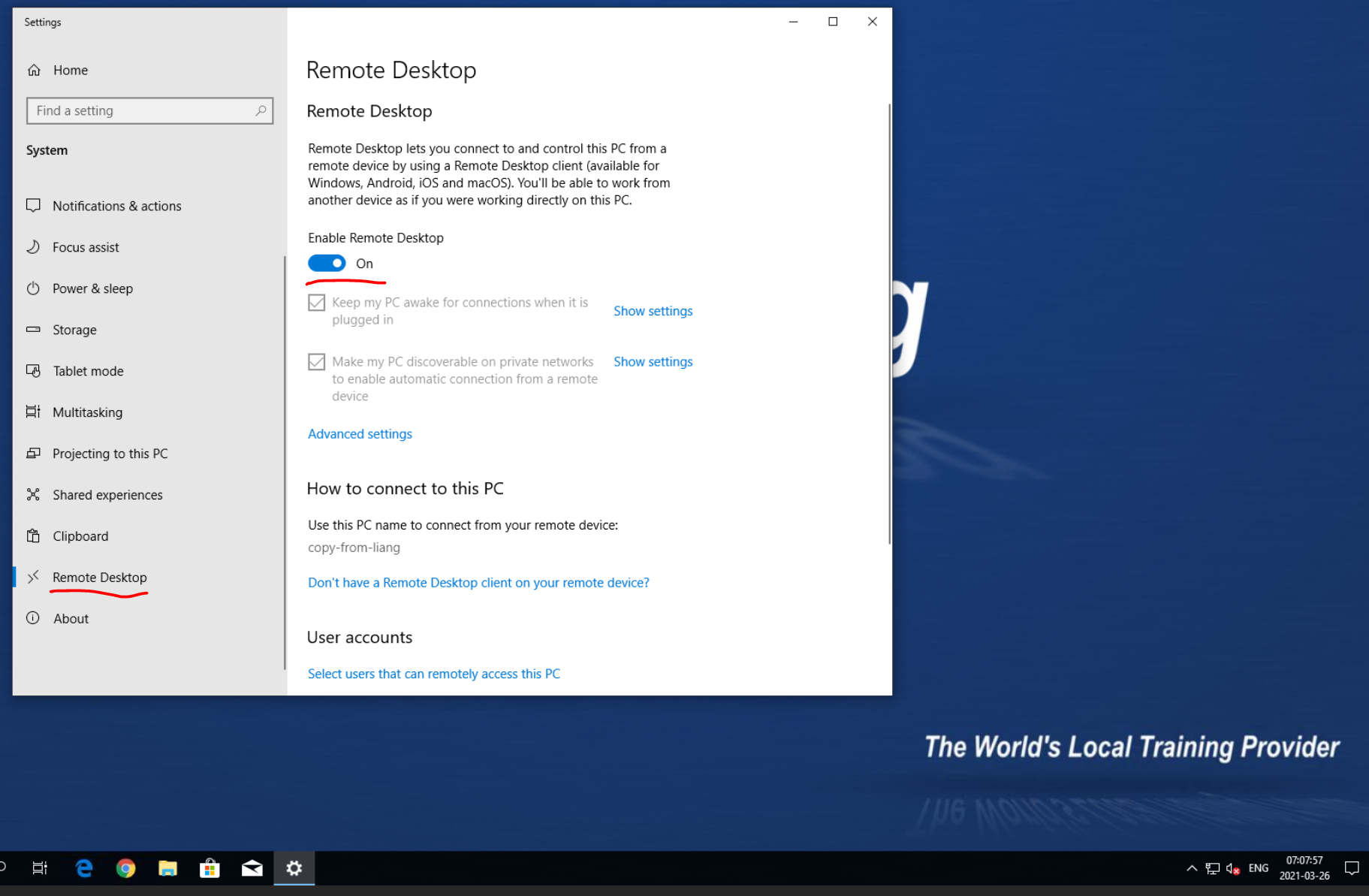
2. Submit, set up a password inside your Windows DD machine, and then click "Enable Remote Desktop"
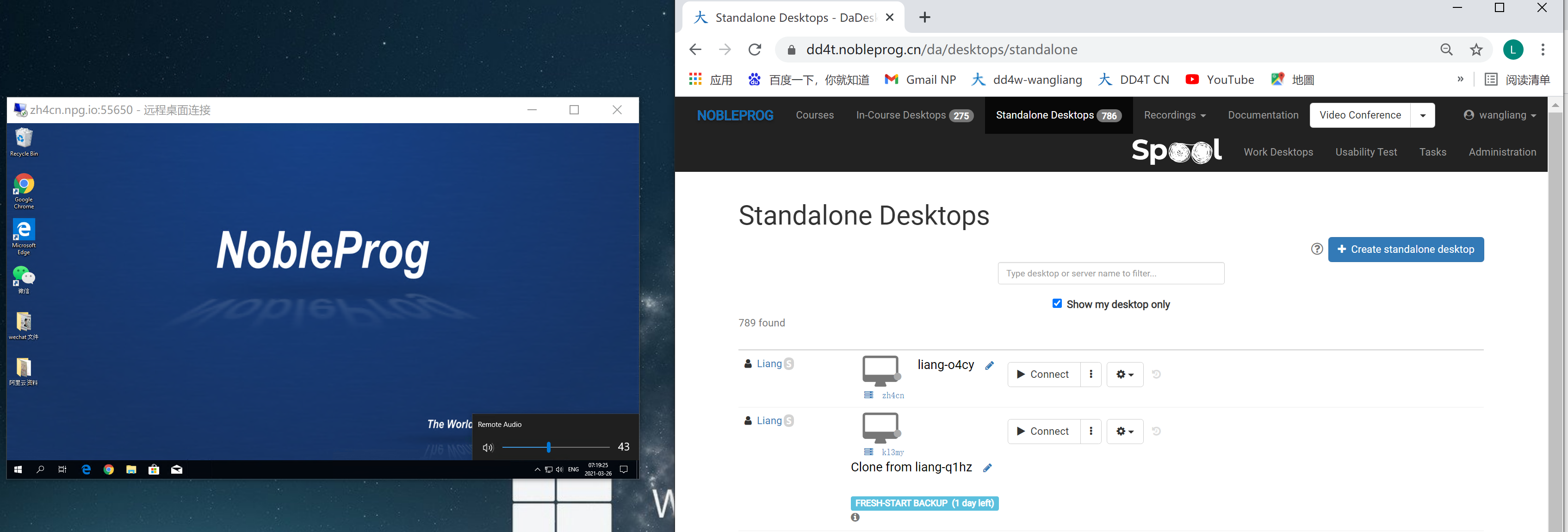
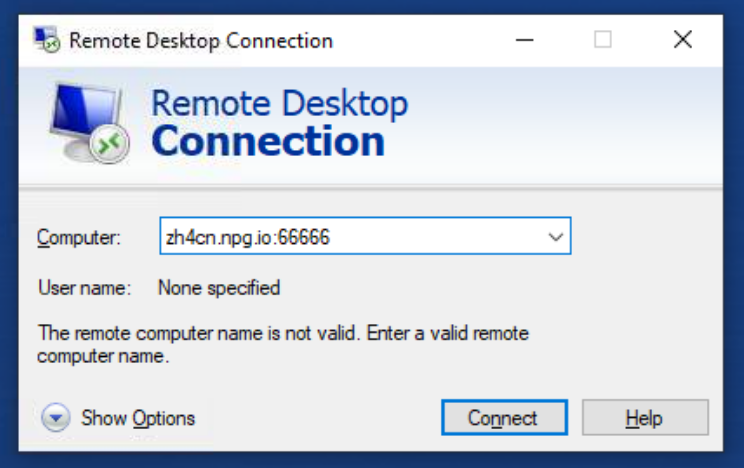
3. Switch back to your Windows devices, open Remote Desktop, and enter the Server name plus the TCP ports. (Here I use zh4cn, so it is zh4cn.npg.io:xxxxx). In 'Show options', you can also select the "resolution" for your remote desktop window, for example.
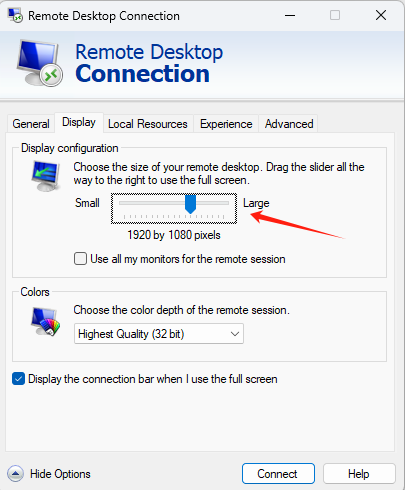
3.1 To log into your DaDesktop remote desktop, by default
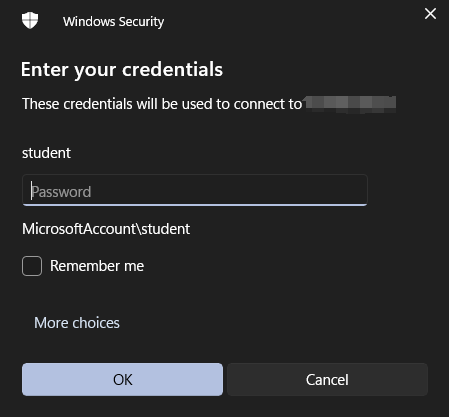
"You should reset your username and password in the machine first."
Then connect to the remote desktop.
4. Afterwards, you'll have a remote desktop utilising the DD template and your own device's sound card; you can also easily copy, paste, or output documents. (The small window on the left: DD remote desktop with audio)