Trainer Recordings
DaDesktop offers several ways to create desktop and course recordings. These include Troubleshooting recordings, Training Room recordings, and Trainer recordings.
Trainer recordings capture the Trainer's DaDesktop machine. Trainers can start session recordings of their machine as described below.
- Click the three vertical dots to open a small drop-down menu. From the menu, choose 'Connect (with session recording)'
-
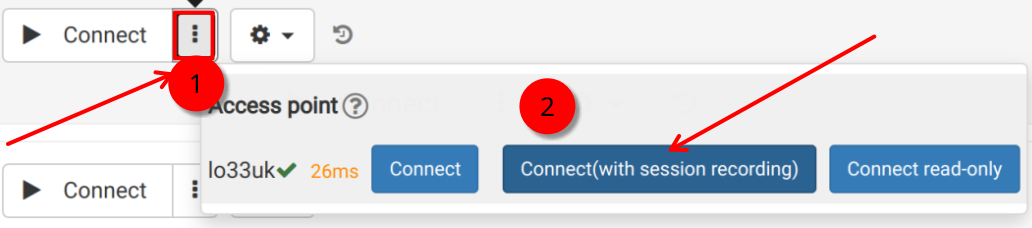
An audio/video recording of the Trainer machine is taken, but it cannot be played back until after the virtual classroom session has ended and the recording has been generated. Note: as a SuperAdmin user, there is an extra menu option that lets you view live recordings while they are being made.
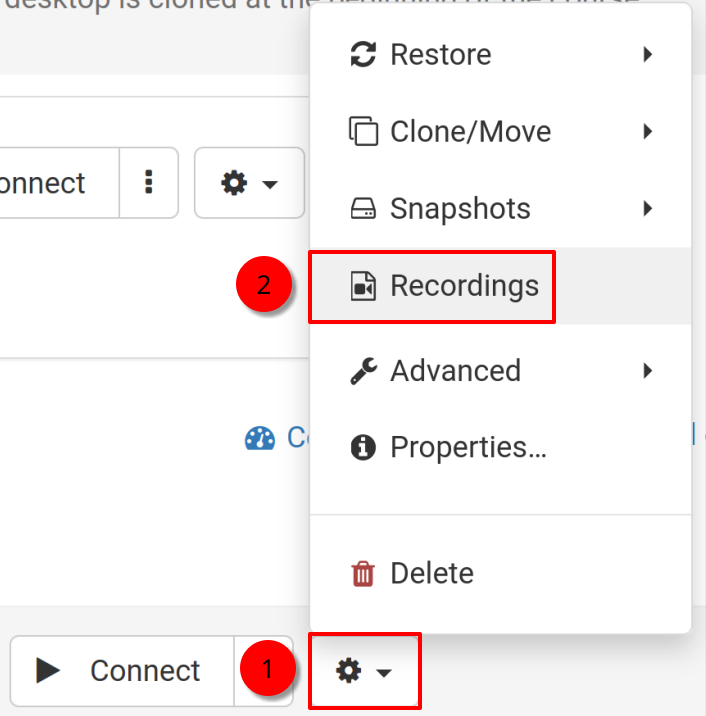
- To view and edit recordings, click the 'cog' icon and go to the Recordings menu.
Recordings
Trainer recordings from their machine can be viewed in two different ways.
- Recordings can be accessed from the Recordings menu as described above. They can be played or deleted as needed. The double spanner icon indicates 'Troubleshooting Recordings' (these are generated automatically and are not intended for presentation, but rather for troubleshooting whenever required).
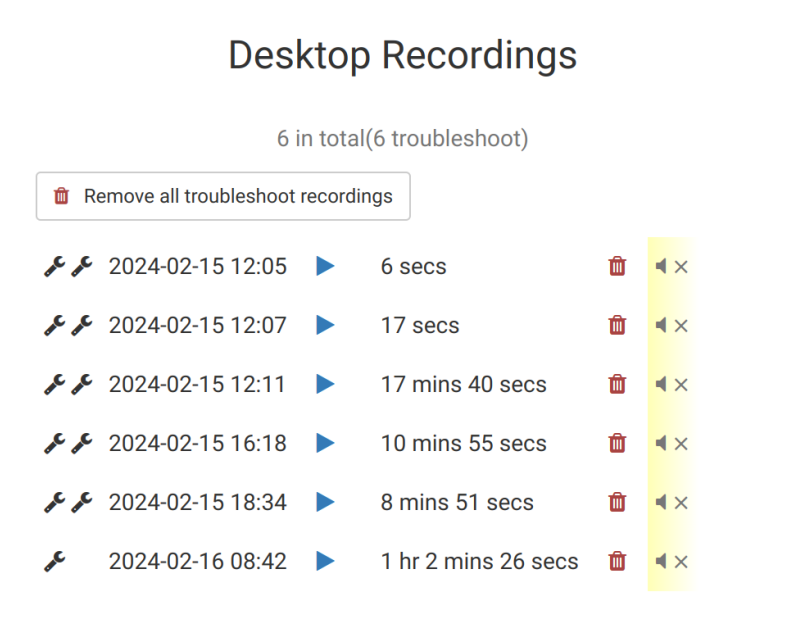
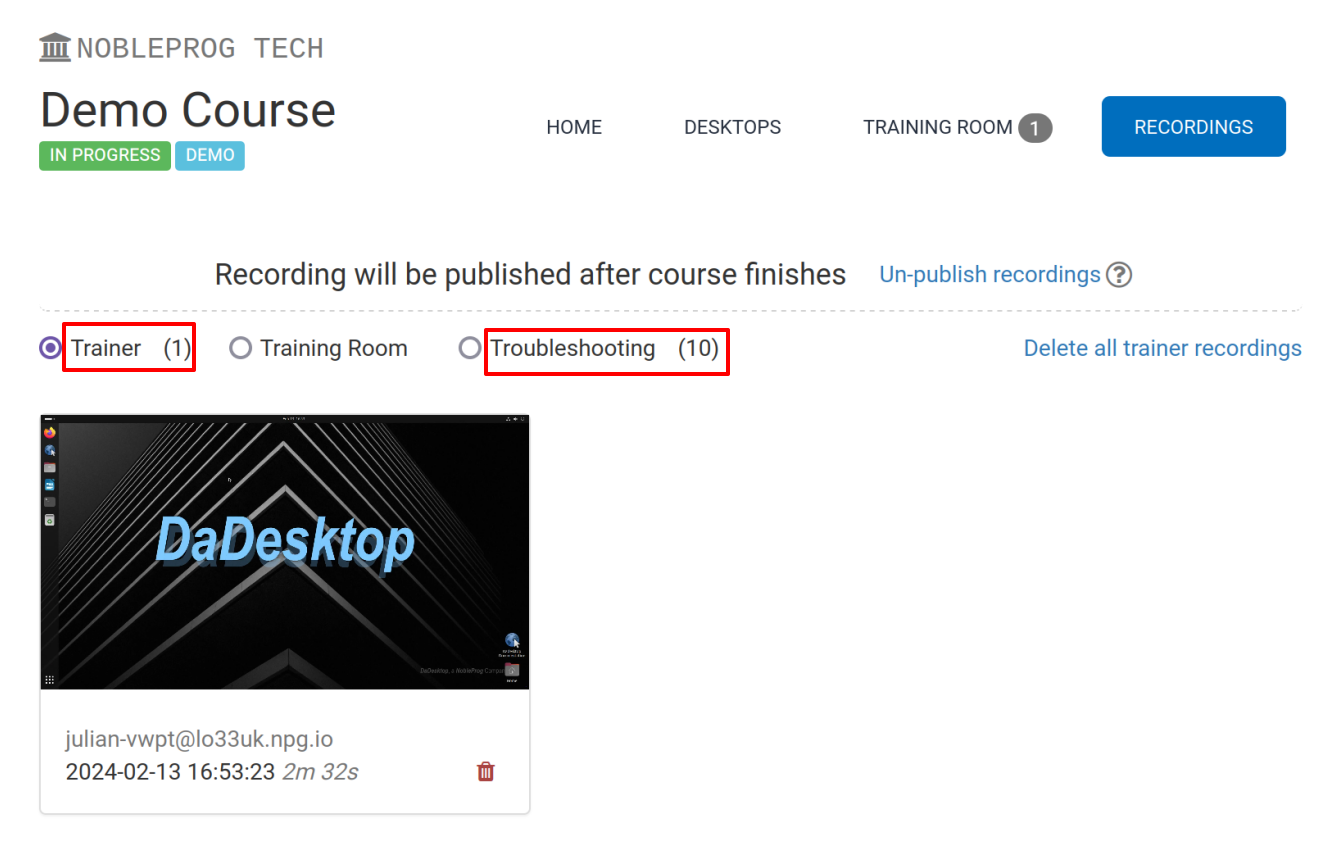
2. By using the 'Recordings' tab within a course, you can see Trainer recordings, Training Room recordings, and Troubleshooting recordings.