Selecting Multiple Course Dates
When setting up a course, you have the option to schedule it across several course dates. This lets you tailor the availability to suit your participants and better fit your timetable.
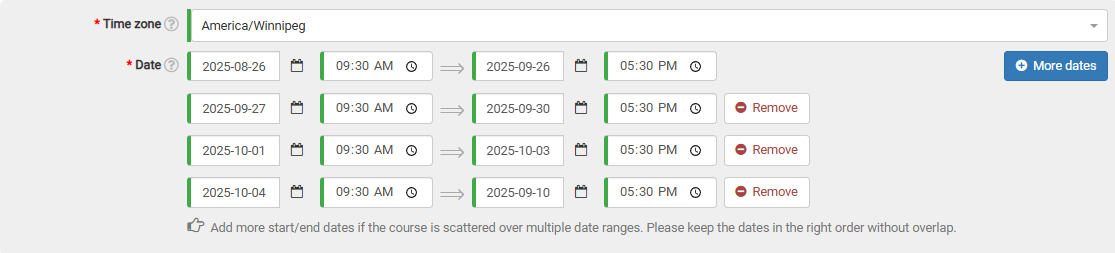
In the date section of the course form, click the "More dates" button. A fresh date selection line will then appear on the form.

You're free to add as many date ranges as necessary, provided they don't overlap with one another.
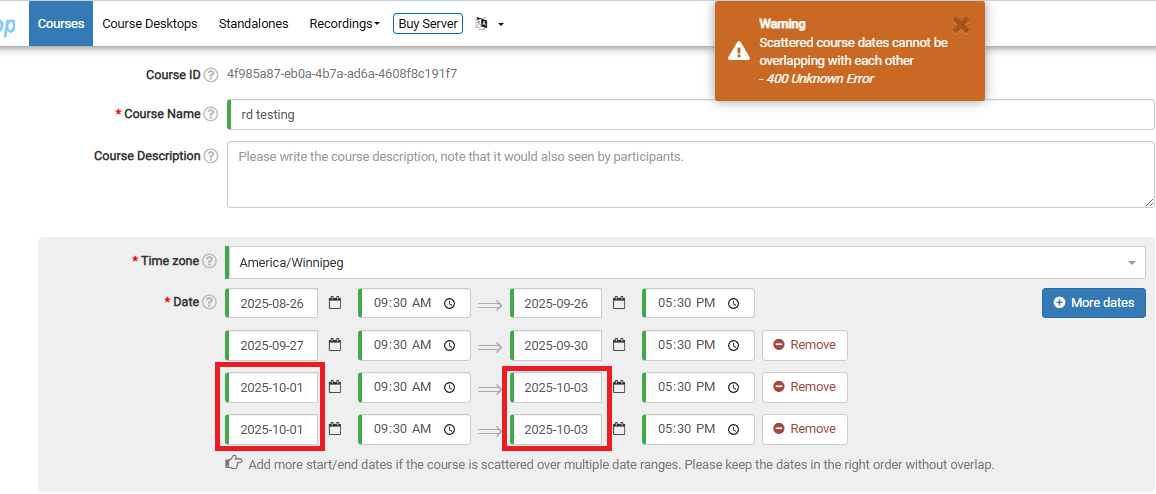
Should they overlap, a warning will show at the top of the page once you attempt to submit your course. Below, you'll notice I've inadvertently selected two identical date ranges.