Training Room View
The Training Room provides a handy way to join a course.
It enables users to:
- Take control of their virtual desktops (trainers can also control participants’ desktops)
- View the trainer’s desktop in grid or side-by-side mode
- Record their desktop
- Pop the desktop out to another browser window, or to another monitor if preferred
- Chat
-
View training materials
All of this takes place within a browser window. By default, once participants have joined a course they are taken directly to the Training Room, simplifying the process for new users.
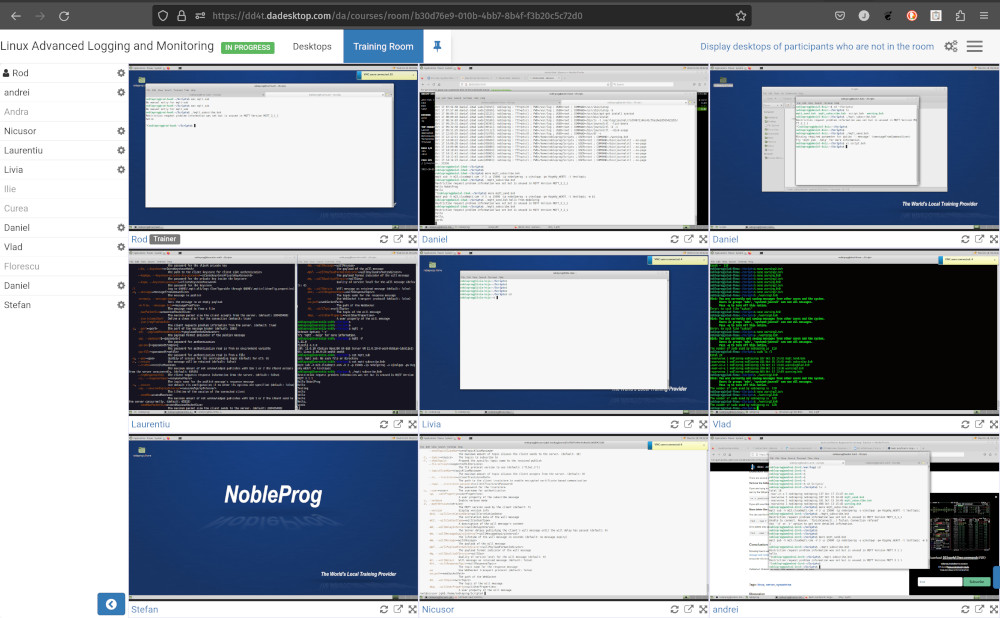
Trainers can also view all participants’ machines simultaneously, and interact with any of them to assist someone who needs help or is struggling to keep up. The ability to monitor all student machines at once is unrivalled, and greatly assists the trainer in replicating traditional classroom teaching.
Training Room View (Trainer view)
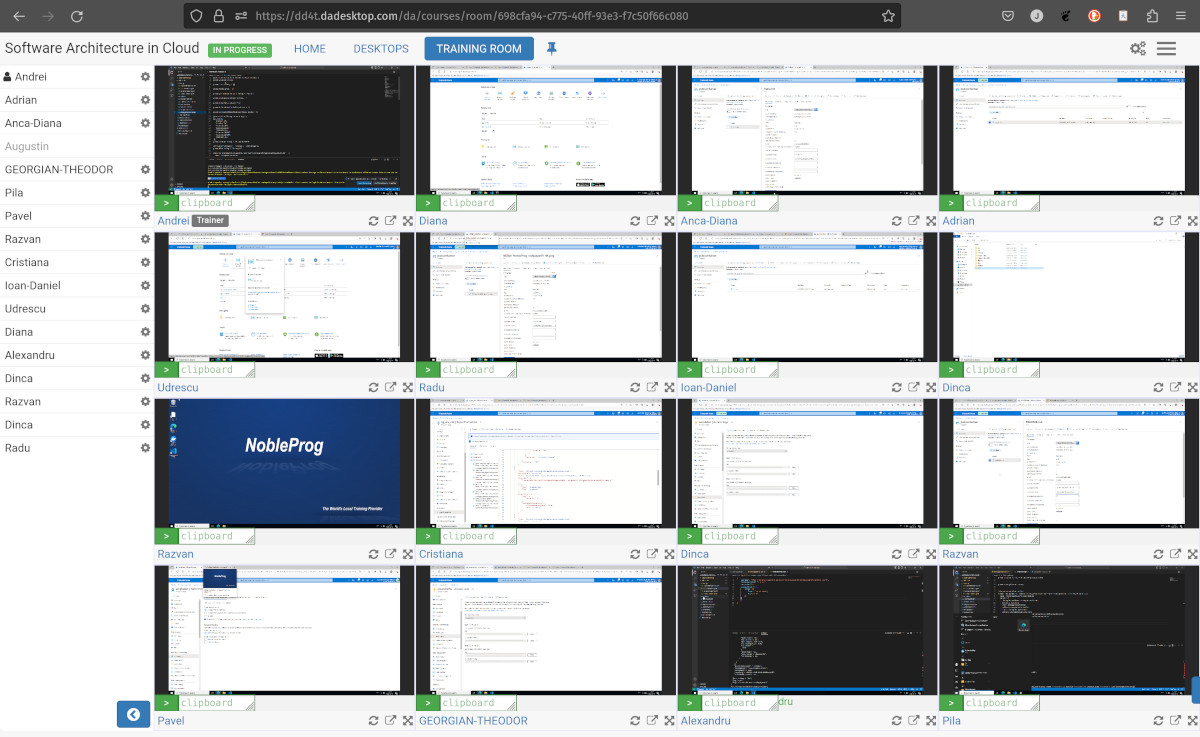
Training Room view with 16 participants (Trainer only)
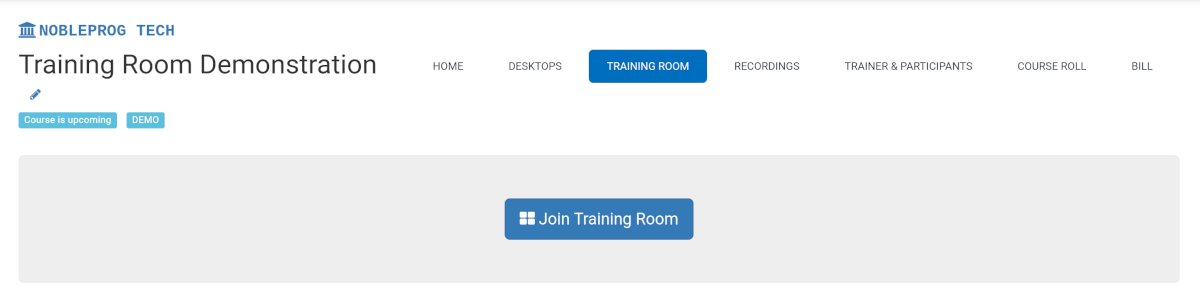
Joining a Training Room
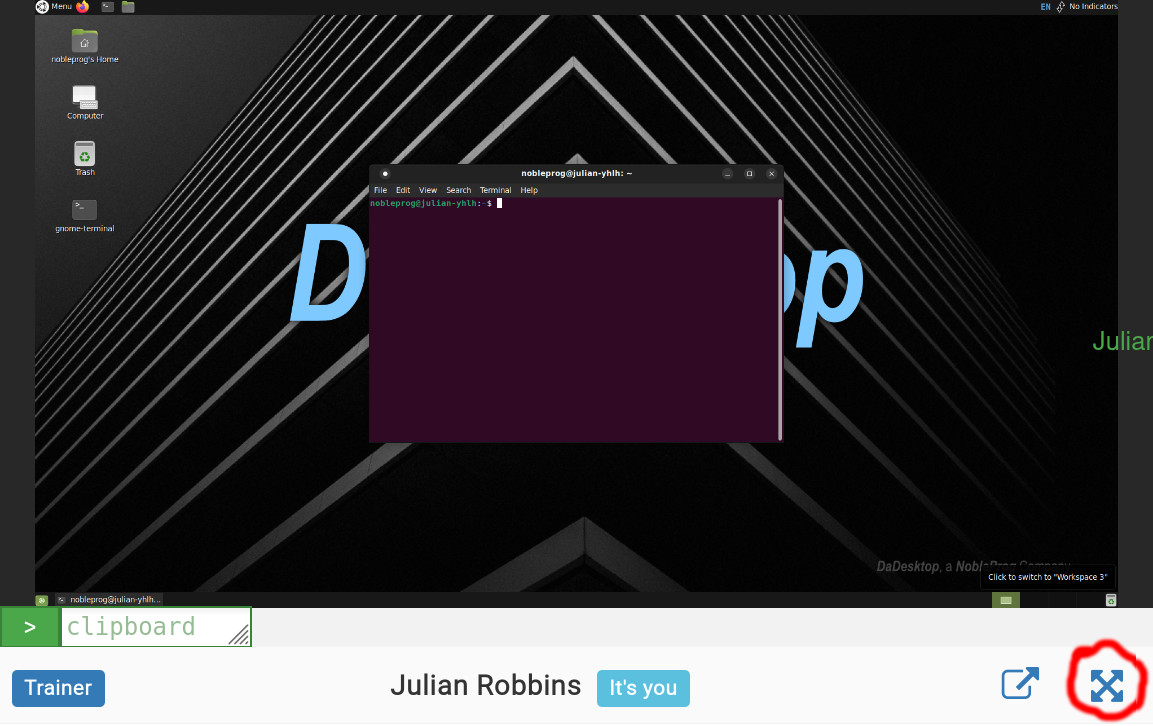
To Maximise Window
Exiting the Training Room View
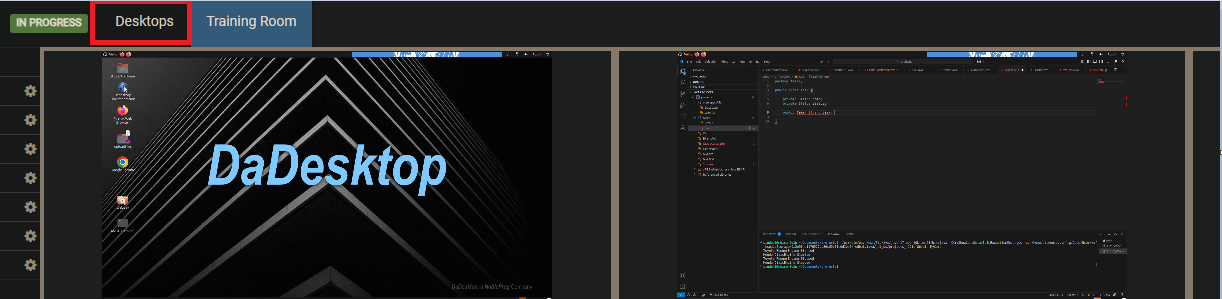
Although not immediately obvious, to exit the Training Room view, simply click the ‘Desktop’ tab again; this will return you to the Training page.