Recycle Bin
Once a course is finished, all associated machines—i.e. the Fresh Start, Trainer, and all Participant machines—are taken down after a short period.
A feature has been introduced that lets you recover these machines from the ‘Recycle Bin’ for a while after they’ve been removed from the course. How long machines remain restorable depends on several factors, such as server disk space, course usage, and more, rather than a fixed timeframe. That said, you should normally be able to restore machines for at least a couple of months after a course wraps up.
Each machine can be Restored to its original Course if that Course is still available; otherwise, it can be Restored to a Standalone Desktop, or if you prefer, Deleted entirely.
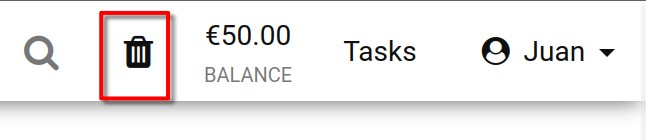
The status of your Recycle bin is shown by the Recycle Bin icon. When it’s black, there are machines ready to be restored; if greyed out, the bin is empty and no machines are available for recovery.
You can also search the list of machines in your recycle bin by name, server name, or course name.
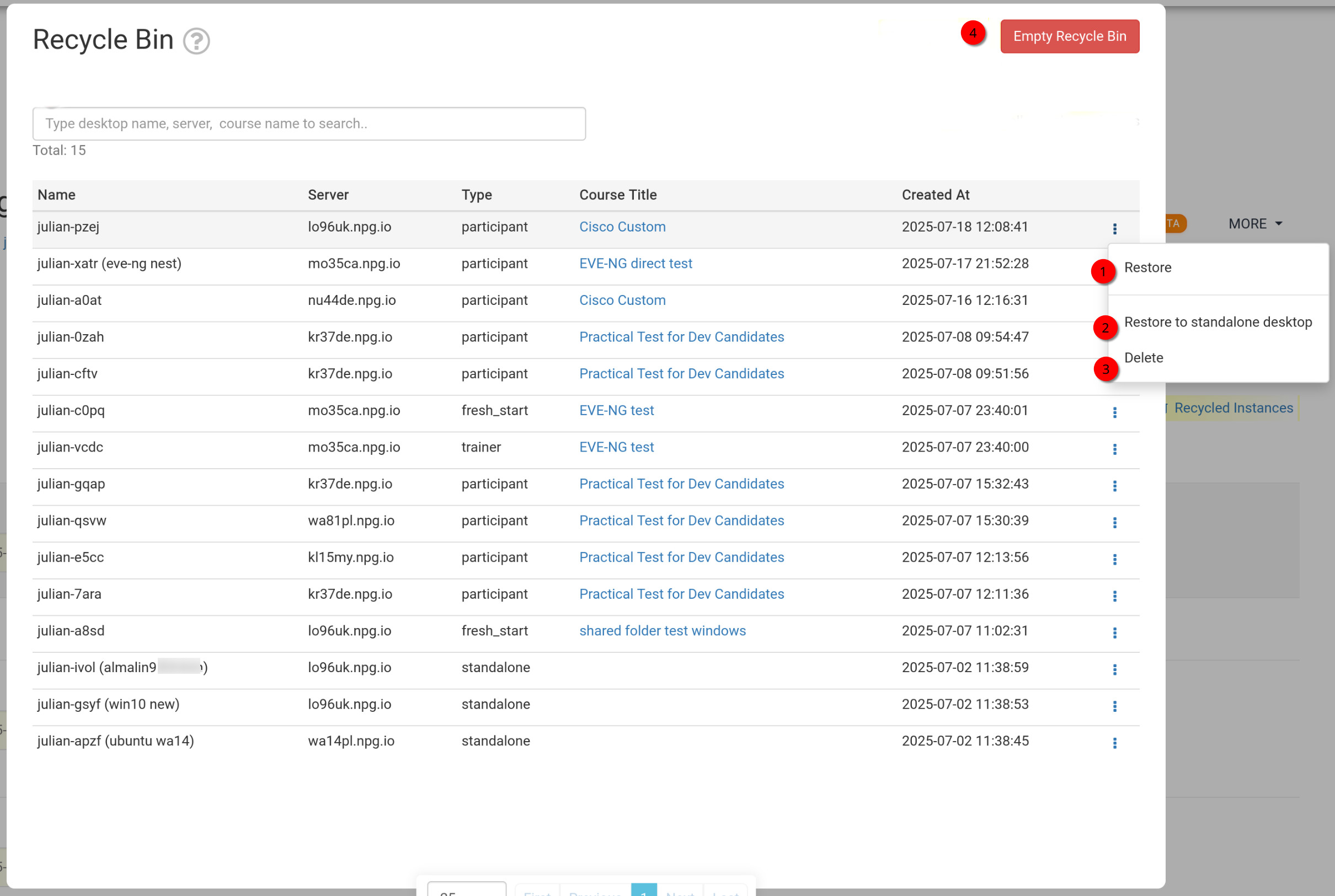
How to Restore or Delete your machines from the Recycle Bin
- Restore - This option recovers a machine that was removed from a course and puts it back onto that course. If the course has already finished, the machine can’t be restored there and will instead need to be restored as a Standalone machine (see below).
- Restore to Standalone Desktop - Typically used when your course has finished and you can no longer restore to it. Choosing a Standalone machine gives you more flexibility, as the machine will be kept for as long as you need.
- Delete - To permanently remove a machine from the Recycle Bin, use ‘Delete’. N.B. once a machine is deleted from the Recycle bin, it cannot be recovered.
- Empty Recycle Bin - Clicking the red Empty Recycle Bin button will delete all your machines from the Recycle Bin, and they can then no longer be used.