If an existing Fresh Start machine is running low on disk space, you can easily resize it to add more capacity
First, you’ll need to stop the Fresh-Start machine
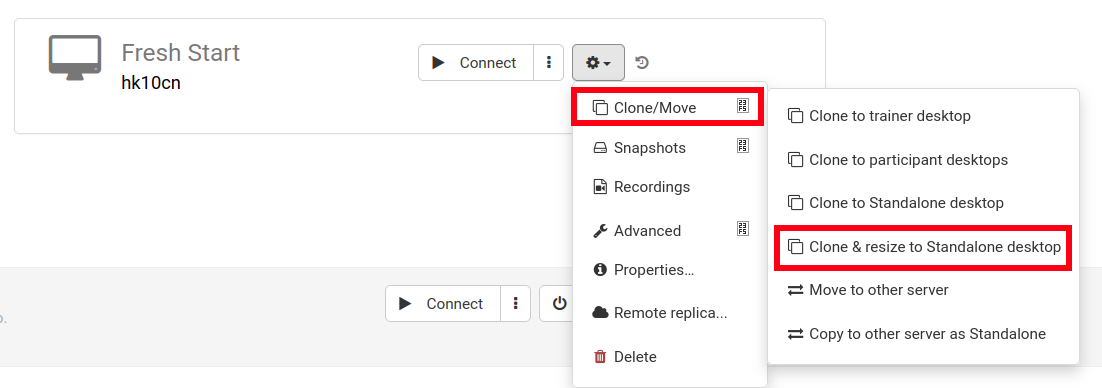
Next, choose Clone & Resize to Standalone as shown below (create an organisation if you haven't already done so)
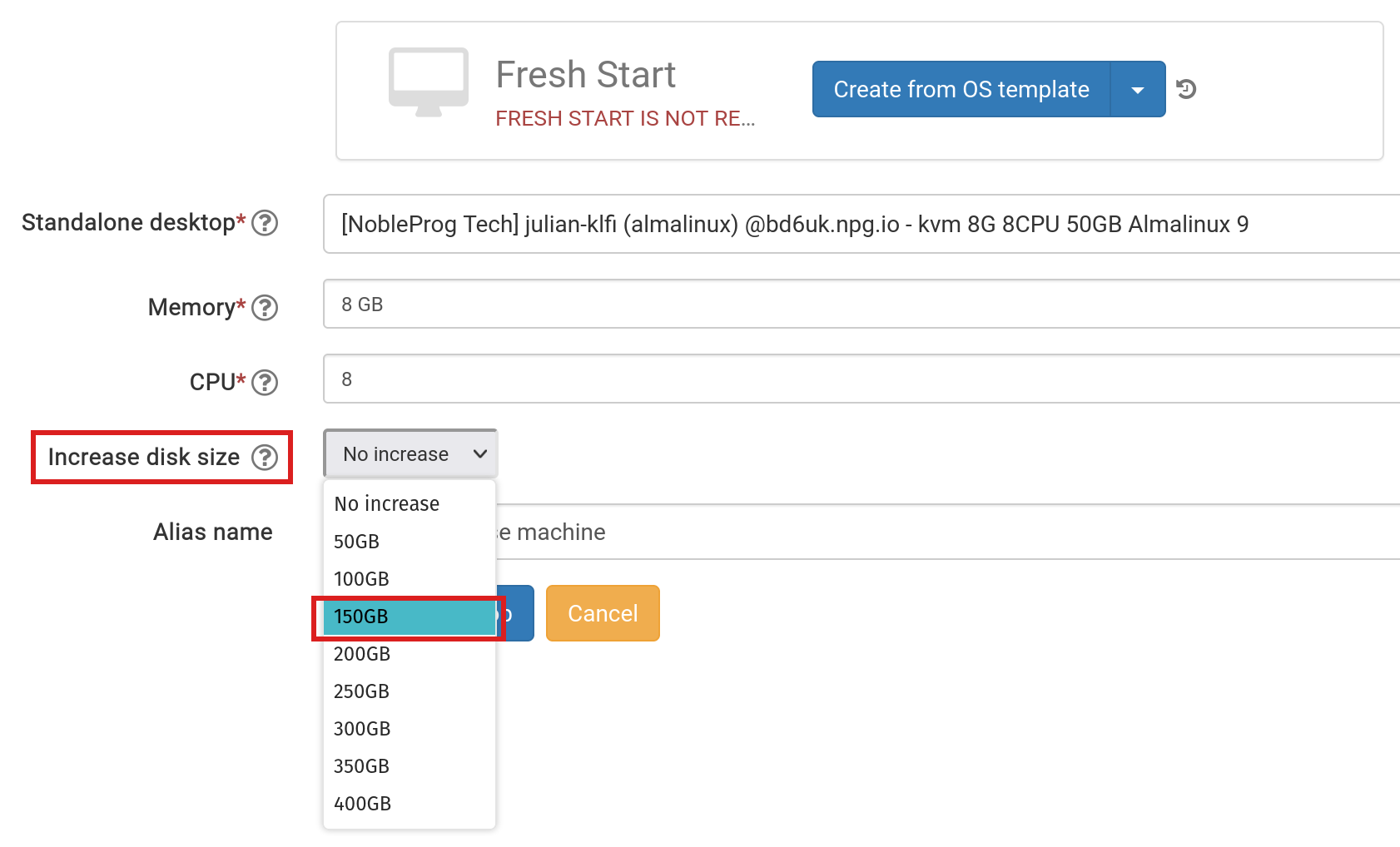
At this stage, increase the disk size to suit your needs and submit
Head to the 'Standalones' link at the top of the page to locate it and verify it’s present
Remove the Fresh-Start machine back within the course using the 'Delete' button
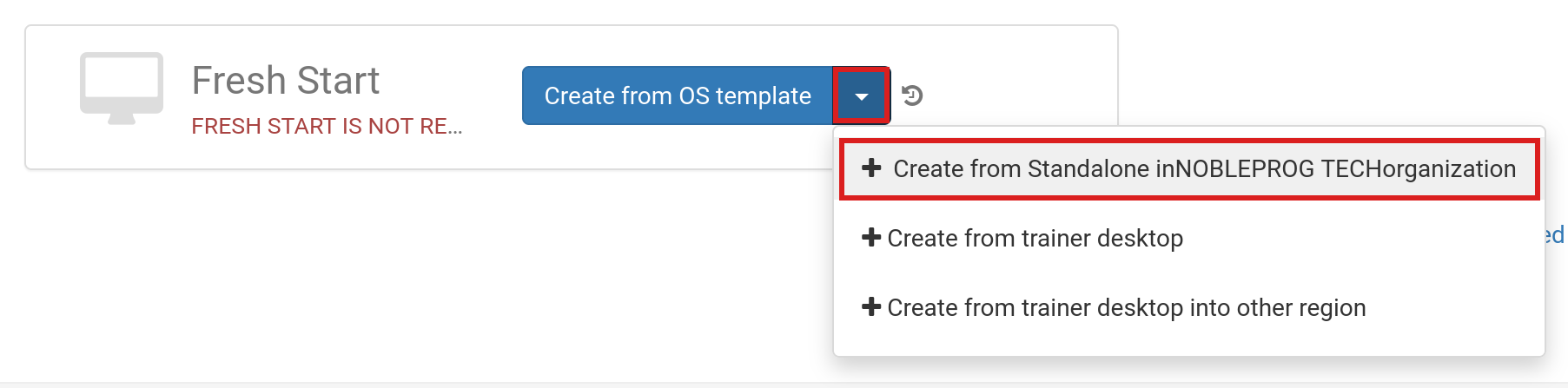
Select the 'Create Fresh-Start from my Standalone' button
Within the 'Create from Standalone' dialogue, you can also opt to increase the disk size here if you missed doing so in the earlier step
Add an Alias name, if necessary, and then click the 'Create Desktop' button
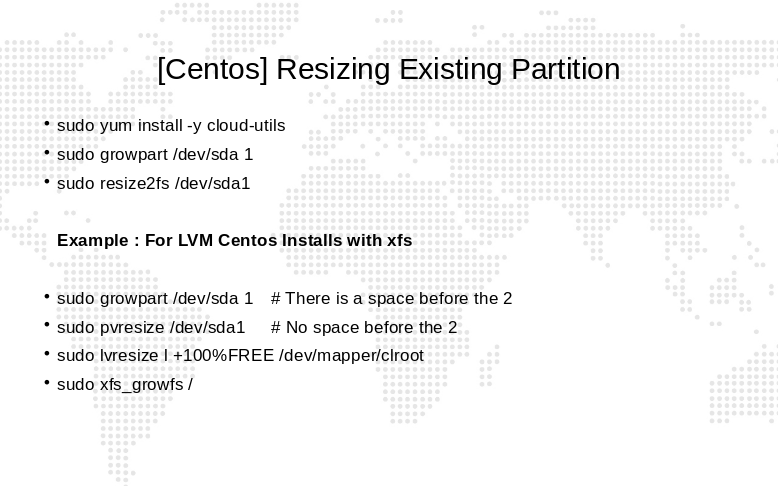
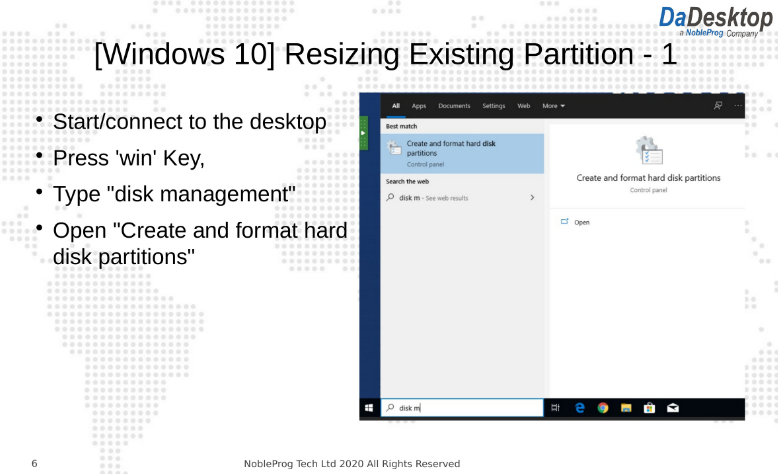
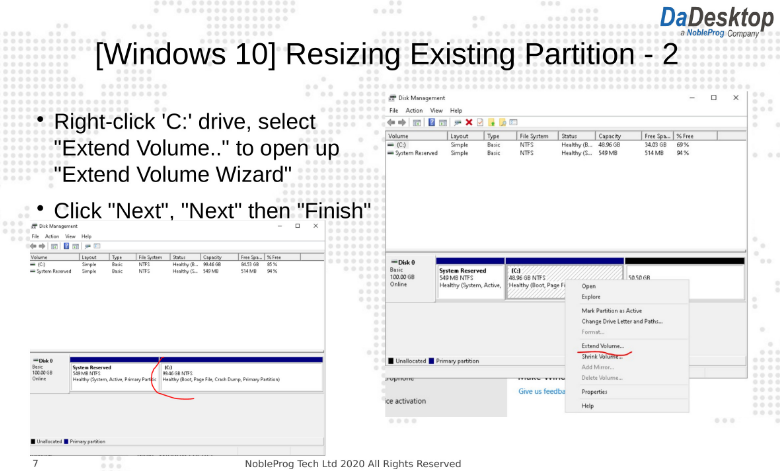
For Standard DaDesktop Linux and Windows OS templates, the operating system will be extended automatically. Do note, however, that AlmaLinux standard templates configure default partitions differently, which calls for extra manual steps outlined below.
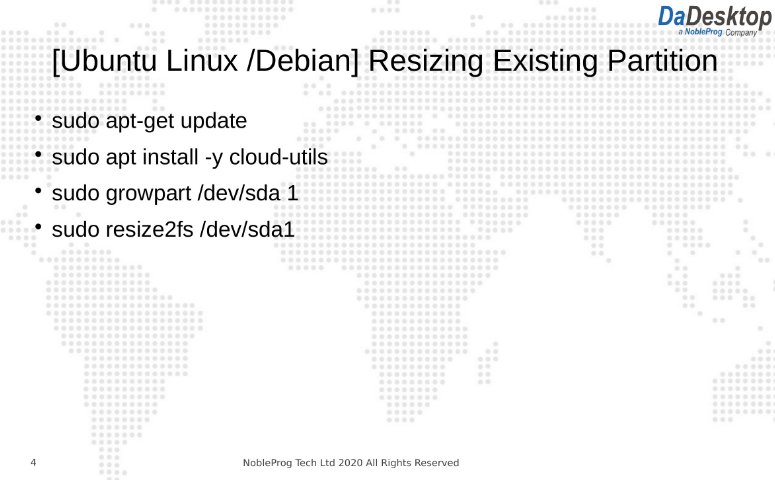
For Custom OS Templates, the automatic extending of the partition(s) may need to be carried out manually—the steps to follow are shown below.
For Custom OS Templates and Almalinux standard templates, please follow the steps below to extend partition(s)
Follow the instructions to adjust your desktop partitions